Disclosure Partner links are marked. We may earn a commission if you use one. It costs you nothing extra and never changes our verdict. How we review
A secure trading account is a login you can still recover after a lost phone. The short answer is twelve habits: a unique password, a second factor that is not a text message, a lock on the phone number, and a short list of places money is allowed to leave. Do them for every broker, exchange and chart login among your trading accounts.
A short answer for a secure trading account
Most account takeovers of a broker or an exchange start the same way. Someone already has the password, from a leak at another site or from a look-alike page, and the second check is a text message they can redirect. Closing those two doors, and then telling the platform which bank accounts and coin addresses are allowed, is the whole job.
You do not need a new computer. You need an afternoon and the logins you already have. Work in the order below. A later step is weaker if an earlier one is still open: a whitelist does little if the email that resets the password is the same inbox you use for every newsletter.
The twelve steps are about the login, the device and the path money takes out. They do not choose a trade, a market or a size. For the words on a ticket, the guides are the place to read, and the position size calculator is the page for how large a position is. This checklist stops before that.
Twelve steps to secure a trading account
1. Use unique passwords and a password manager
A reused password is how a leak at an unrelated website becomes a broker login. The other site is breached, the email and password are published, and a script tries that same pair on every broker and exchange it can find. If you used the pair in two places, both open.
Make a different password for the broker, the exchange, the charting site and the mailbox that can reset them. A password manager does the remembering. Use the one built into your phone, or a separate app you unlock with one password you have memorised. That master password is not used anywhere else. Let the manager generate a long random password for each site. You should not be able to recite the broker password from memory, and you should not need to.
Turn on a second factor for the manager itself, an authenticator app or a hardware key. A manager that can be opened with a text message has the same hole as a broker that can.
On a computer other people use, tell the browser not to save the broker password, and lock the manager when you stand up. When you close an old account, change any password that was copied from it. Write nothing on a sticky note on the monitor. A note is a password that the room can read.
2. Turn on an authenticator app or a hardware key, not SMS
A second factor is a check the password alone cannot pass. The strong forms are an authenticator app that shows a code which changes every half minute, and a hardware key, a small device you tap, that speaks the common FIDO2 standard. Both stay in your pocket. A text message does not: it follows the phone number, and the phone number can be moved.
On each broker, exchange and mailbox, open the security settings and turn on the app or the key. If the site offers both, register the key and the app, so a lost key does not lock you out. Save the backup codes the site shows you. Print them. Do not leave them in the same mailbox that can reset the account. A code stored in that mailbox is available to anyone who gets the mailbox.
Many brokers still offer only an app, or only SMS. Use the app when it is there. Use SMS only when the site offers nothing else, and do step 3 the same day. Email as a second factor is a weak stand-in: it collapses if the mailbox is the thing that was taken.
While you are in those settings, turn off any option that lets you skip the second factor on the next login "because this device is trusted," on a computer you do not fully control. A trusted device is a device that can log in with the password alone.
3. Add SIM-swap protection with the carrier
A SIM-swap is a transfer of your phone number onto a SIM that someone else holds. They ask the carrier to move the number, often with a few personal details that leaked years ago. Your phone goes quiet. Their phone starts receiving your text messages, including password resets and login codes.
Call the carrier, or use the account page you already signed in to, and ask for a lock on number transfers. The usual names are a port-out PIN, a transfer PIN, or a number lock. The point is the same: the carrier will not issue a new SIM for that number unless the PIN is given. Set a PIN you do not use for anything else, and store it in the password manager, not in a text message.
Also set a PIN on the SIM card itself, so a stolen phone cannot be dropped into another handset and used at once. That SIM PIN does not stop a port at the carrier. You need both.
Ask what happens to the lock if you later walk into a shop. Some carriers will still move a number for a person who shows up with an ID. If that is the policy, ask what extra check they can add, and write the answer in the recovery plan in step 12. Do this for every number that can receive a broker code, including a work number if a code ever goes there.
4. Use a separate email for broker and exchange logins
The mailbox is the real key. Whoever can read the reset message can replace the password and then the second factor, if the site allows a reset by email. An everyday address is a poor place for that message. It is on dozens of mailing lists, it has been typed into shops and forums, and it is the address that shows up in leaks.
Create one address and use it only for the broker, the exchange and the charting login. Give it its own long password and an authenticator app or a hardware key, the same standard as step 2. Do not sign that address up for newsletters, shops or comments. Each extra signup is another place the address can leak, and another email you have to scan for fakes.
Do not auto-forward that mailbox into the everyday inbox. A forward puts the reset link back in the inbox you were trying to leave. Read the broker mailbox on its own. If you want a copy of statements, set a filter that forwards statements and never forwards mail whose subject is a reset, a code or a new device.
Update the address on each broker and exchange while you still have the old login. Some platforms send a confirmation to the old address and the new one. Finish that confirmation before you close the tab. Then remove the old address from the account so a reset cannot go backwards.
5. Whitelist withdrawal addresses and bank accounts
A stolen session is most useful if it can send money somewhere new. Take that option away. On an exchange, turn on the withdrawal allowlist, sometimes called an address book or a whitelist. Add only the addresses you actually use. Turn on the waiting period before a newly added address can receive funds, if the platform has one. A wait of a day or two is long enough for a login alert to reach you and short enough that a planned transfer still happens.
On a broker, the same idea is the bank account on file. Add the account you withdraw to, and turn on any setting that refuses a withdrawal to an account you have not already approved. If the broker has no such setting, ask support to note the only account you will use, and treat any email about a new bank account as suspicious until you have checked it inside the logged-in site.
Review the list twice a year. Delete addresses you no longer use. A long list of old addresses is a list of places a thief can still send coins. Match the name on a coin address to the wallet you hold, and send a tiny first withdrawal when you add one, so a typo does not become the place the rest of the money goes.
6. Update the phone, the computer and the browser
Old software is a door that the vendor has already said is open. They published the fix. The device does not have it yet. Before you rely on a phone or a laptop for a broker login, install the system updates and restart. Do the same for the browser. A browser that is a year behind will load pages, and it will also load bugs that newer copies have closed.
Install the broker's app from the official store, or from the broker's own site that you typed yourself. Do not install it from a file attached to an email, even if the email looks right. On a phone that no longer receives system updates, stop approving withdrawals. Use it to read a quote if you must. Move the login to a device that still gets fixes.
Turn on automatic updates for the system and the browser, then check once a month that they actually ran. A setting that says "automatic" and a restart you keep postponing is the same as off. While you are there, remove broker apps you no longer use, and sign those old apps out. An abandoned app on an old phone is still a session.
7. Check broker emails before you click
A phishing mail uses the broker's name and a reason to hurry: a locked account, a failed withdrawal, a document that expires tonight. The hurry is the point. It is there so you click before you look.
Read the domain after the @ sign, not the display name. The display name can say anything. The domain is the real sender. A domain that adds a word, swaps a letter, or ends in a different ending is a different site. Hover a link, or long-press it on a phone, and read the address before you open it. Then do not open it. Type the broker's address yourself, or let the password manager open the bookmark it already has.
This is the useful property of a password manager. It fills the password on the real domain and refuses the look-alike. If the manager does not offer the password, you are probably on the wrong site. Close the tab and start again from the bookmark.
A genuine broker does not ask you to read a login code aloud, to send a photo of your seed phrase, or to install a remote-control app so support can "fix" the account. Support can see the account from their side. A caller who needs your code does not work for them. Hang up, find the number on the broker's site, and call that number yourself.
The same pause helps with files. A statement that asks you to enable macros, or a "platform update" that is a program you did not request, is not a statement. The guides on this site are for reading the words of a trade. The habit is the same one: open what you meant to open, not what a mail told you to open.
8. Clean up MT5 and TradingView sessions
MetaTrader 5 keeps a password on the computer if you leave "Save account information" ticked at login. That is convenient on a machine only you use, and it is a stored key on a machine you share or might sell. Untick it on any computer that is not yours alone. When you step away, close the terminal, and do not leave a live chart running on a desk other people can touch.
MT5 has two passwords. The master password can place and change orders. The investor password can only look. If you ever share a view of the account with someone who should not trade, the investor password is the one to give, and you change it when that need ends. Never send the master password by email or chat. If it has already been sent, change it, then remove the message.
Check the server name against the name in the broker's client area, the page you opened yourself. A terminal that was set up from an email can point at a server you did not choose. In the Navigator, delete accounts you no longer use, so an old saved login cannot be reopened by habit.
On a remote machine, a virtual server or a spare PC at home, the terminal is a logged-in session for as long as it stays open. Use a machine you control, with its own lock screen, and close the terminal when the work is done.
TradingView, and any other chart site tied to the same email, has a list of signed-in sessions in the account settings. Open it. Sign out every session you do not recognise, and sign out phones you no longer have. Then change the password if anything on that list surprised you. Do this whenever you buy or sell a device, not only after a scare.
9. Skip public Wi-Fi, or use a VPN
A cafe, airport or hotel network is a network you do not control. The person who runs it, or someone else on it, can see which sites you open and can put a look-alike page in the way. The safest simple habit is to avoid it for broker and exchange logins. Use a phone hotspot you control, or wait until you are on your own home connection.
When you do have to use that network, turn a VPN on before you open the broker, and check that it has connected. A VPN encrypts the path from your laptop to the VPN provider, so the cafe cannot read the pages. It does not make a weak password strong, and it does not stop a phishing page you open on purpose. It is one step, number 9, not a substitute for the other eleven.
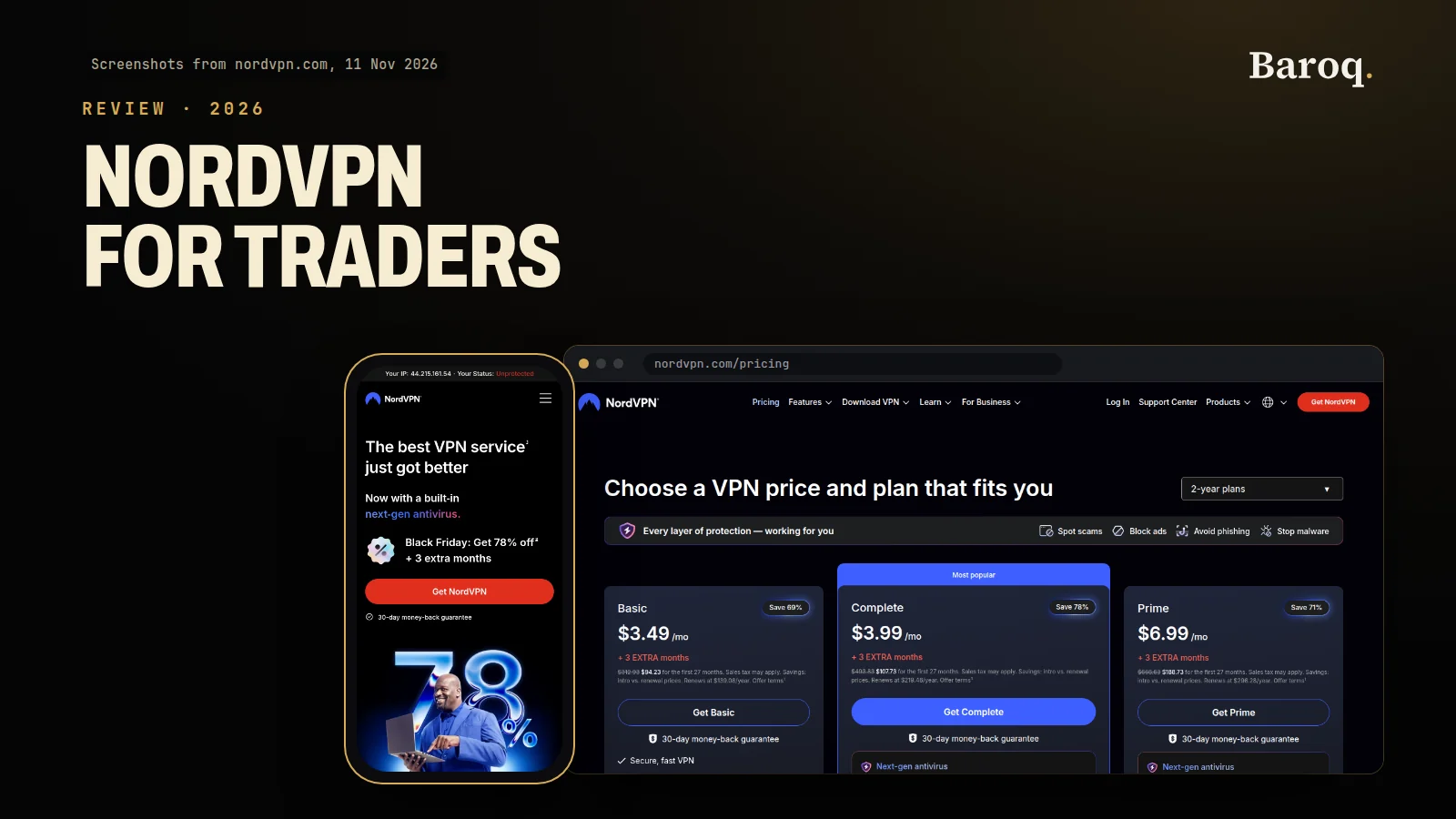
NordVPNPartner is an affiliate link for one VPN you can use on that kind of network. This page does not rank VPNs and does not report a trial of any of them. A wider look is in Best VPN for traders, and the product notes are in the NordVPN review. Prices and terms change. Read them on the provider's own site before you pay.
On your own home connection, a VPN is optional. Keep the router updated, and do not share its admin password with the Wi-Fi password printed on a card for guests. A guest network, if the router has one, keeps visitors off the machines you trade from.
10. Give API keys no withdrawal rights
An API key is a password for a program. A journal, a chart bridge or a bot uses it to read the account and, if you allow it, to send orders. The dangerous permission is withdrawal. A key that can withdraw can move funds to any address the program, or whoever copied the key, asks for.
Create a key only when a tool you chose needs one. On the create screen, leave withdrawal permission off. If the site also offers a choice between "read" and "trade," pick the smallest one that does the job. A journal needs to read. It does not need to trade. If the screen has no way to deny withdrawals, do not create the key.
If the platform can limit a key to an IP address, set that to the address of the machine that will use it. A copied key then fails from anywhere else. Use one key per tool. When you stop using a tool, delete that key and leave the others. Rotate a key that has appeared in a screenshot, a chat, a support ticket or a notebook that syncs. Deleting the picture does not delete the copies. Deleting the key does.
Keep keys out of the same place as your everyday notes. The password manager, or the tool's own stored secret, is enough. Do not paste a key into an email to yourself "as a backup." That email is a second copy with none of the limits you just set.
11. Turn on login alerts and read them
An alert is useful only if it arrives somewhere you will see, and only if you act on the ones you did not expect. In each broker, exchange and mailbox, turn on email or push alerts for a new device, a new IP address, a failed password and a change to the withdrawal list. Send those alerts to the separate mailbox from step 4, the one that already has an authenticator app. An alert that lands in an inbox without a second factor can be deleted by the same person who caused it.
Read them. A weekly glance is not enough on the day one arrives that you do not recognise. When a login alert shows a city or a device you did not use, treat it as live. Do not wait to see if money moves. Step through the actions in the next section.
Also turn on the alert for a new withdrawal address and for a password change. Those two tell you that the settings, not just the login, were touched. If the platform offers an alert and it is off by default, switch it on while you are already in the security page for the other steps. Five minutes here is the difference between hearing about a session and finding an empty account later.
12. Write the recovery plan while you still can
A recovery plan is a short note you can follow when the phone is gone or the login already looks wrong. Write it before that day. On the day, you will not want to invent the order.
Keep it on paper, with the password manager's emergency kit, in a place that is not the laptop. Include:
- Where the backup codes are, and which site each set belongs to.
- The carrier's name, the account PIN, and the words to say: lock number transfers.
- Each broker and exchange, the account reference, and the support path printed on their own site, not a number from an old email.
- Which bank accounts and coin addresses are already on the whitelist, so a new one stands out.
- A second hardware key, if you registered one, and where that key is kept.
Decide the order of calls now. Carrier first, so the number stops moving. Then the broker and the exchange, from a device you trust, to change passwords, sign out sessions and freeze withdrawals. Then the mailbox provider, if the reset address itself is in doubt. Put that order at the top of the page in one line you can read under stress.
Tell one trusted person where the paper is, not what the passwords are. If you are the only one who knows the drawer, a lost key becomes a lost account. Review the page when you change a broker or a phone, and date the review. A plan from three phones ago will send you to a number you no longer have.
Checklist: step, why it matters, time needed
Use this as the working list. The time is how long the step takes when the logins are already to hand. A carrier queue can run longer. Do step 1 and step 2 before you spend time on the rest.
| Step | Why it matters | Time needed |
|---|---|---|
| 1. Unique passwords in a manager | One leaked password then fails everywhere else | 30 to 45 min |
| 2. App or hardware-key 2FA, not SMS | A code that does not follow the phone number | 10 min each login |
| 3. SIM-swap lock with the carrier | Stops a number transfer onto someone else's SIM | 15 to 30 min |
| 4. Separate email for broker logins | The reset link no longer sits in your everyday inbox | 20 to 30 min |
| 5. Withdrawal and bank whitelist | A stolen session cannot send funds to a new place | 10 to 20 min |
| 6. Device and browser updates | Closes bugs the vendor has already published a fix for | 15 to 40 min |
| 7. Phishing check on broker mail | A look-alike page never receives the password | 10 min to learn, then each mail |
| 8. MT5 and TradingView session cleanup | Old saved logins and unknown devices are signed out | 15 min |
| 9. No public Wi-Fi, or a VPN | A cafe network cannot read the login | 10 min to set up |
| 10. API keys with no withdrawal right | A copied key cannot move funds | 15 min |
| 11. Login alerts | You hear about a new device the same day | 5 to 10 min |
| 12. A written recovery plan | The order of calls is decided before the bad day | 30 min |
If a login alert is not yours
Act in this order, from a phone or laptop you trust, on a network you trust. A hotspot is fine. A cafe is not.
- Open the broker or exchange from your own bookmark and change the password. If you cannot log in, use the recovery path on the company's own site, not a link from the alert email.
- Sign out every other session, including MT5 on a remote machine and TradingView on old phones. Remove any device the site calls trusted.
- Check the withdrawal whitelist and the recent transfers. If a new address or a new bank account appeared, remove it and contact the platform from the number on their site.
- Call the carrier and lock number transfers. If the phone has already gone silent, use another phone and be ready with the account PIN from step 3.
- Change the mailbox password and its second factor if any reset mail looks wrong, and confirm the recovery address is still the one you chose in step 4.
Then write down what happened, and the time, while you remember it. Support will ask. After the account is calm, redo any step you had skipped. An alert you did not cause is the checklist showing you the step that was still open.
Educational content, not financial advice. Prices, fees and offers change: check them on the provider's own site before you sign up. Trading leveraged products carries a high risk of losing money, and you can lose all of it.